All Techknowledge Articles | Security Alerts
Phishing bowl: Staying vigilant against phishing
Published on
Updated on
This is the first article in a series of tips to identify the latest trends in phishing scams. This page will be updated with additional resources and insights.
Attacker in the Middle Scams
Scammers use sophisticated methods to trick people into giving up their login credentials. Using misleading links, scammers may direct you to a fake login page that looks legitimate at first glance. Recently, there was a phishing scam that lured users with a request to collaborate on a fraudulent Google document.
This is an increasingly prevalent threat known as an “Attacker in the Middle.” In these types of attacks, users think they are logging in with a legitimate multifactor authentication prompt that often mimics university branding. However, an attacker is intercepting their login credentials.
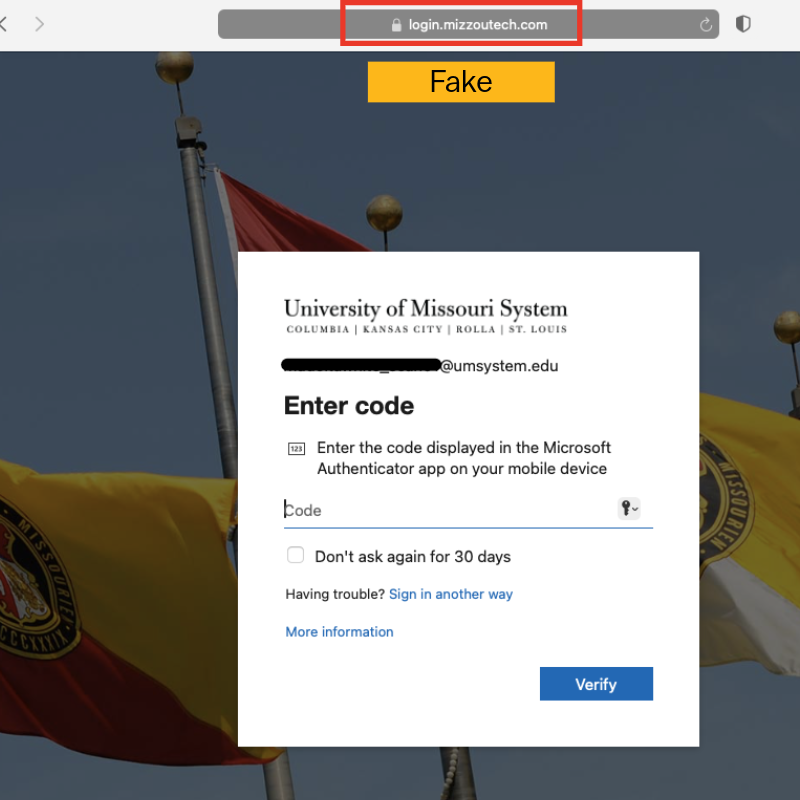
To spot these attacks, carefully review any email that directs you to a login page. If you are logging into a service that uses your university credentials and asks for your Multifactor code, the URL will always start with this domain: https://login.microsoftonline.com. If it does not start with this domain — or if it uses a fake domain such as login.mizzoutech.com — do not sign in. If you inadvertently sign in to a fake domain, reset your password and immediately contact your IT professional.
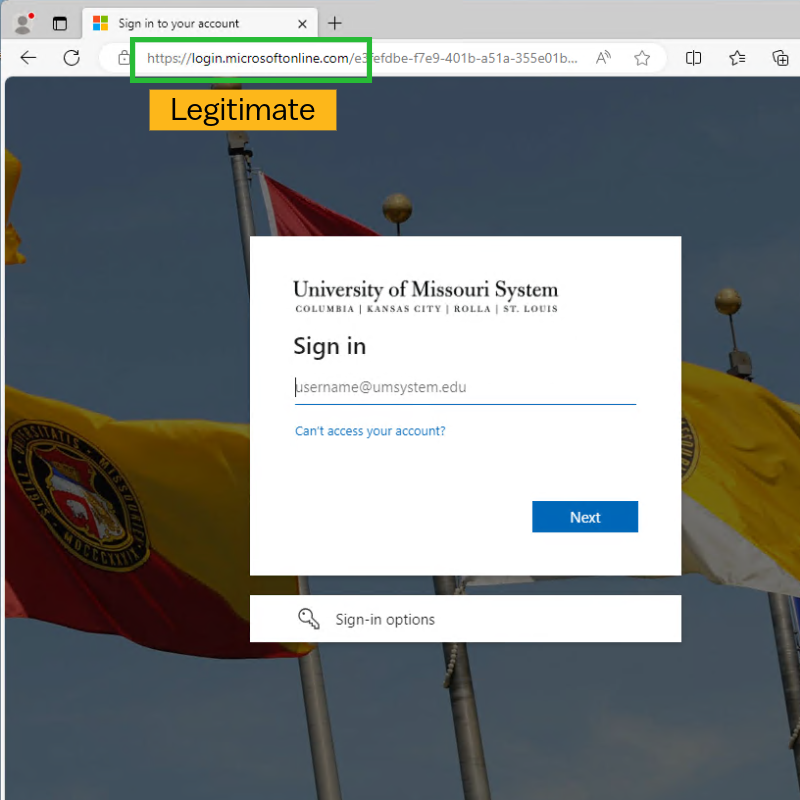
In the example above, notice that the domain is “login.microsoftonline.com.” This is a legitimate sign-in page. In the example below, notice that the domain is “login.mizzoutech.com.” This is a phishing website that is designed to look like a real university domain.
Your vigilance against phishing is crucial.
- Red Warning Banner: A red warning banner at the top of an email is a sign that the email was not generated within the University of Missouri System. If this banner is present, you should always proceed with caution, utilizing the following tips.
- Verify the Sender: Be cautious of emails from unknown or unexpected senders, even if the “From” address appears to be from a trusted source.
- Never click links in unsolicited or suspicious emails: Before clicking, hover your mouse over the link (or use a “long press” on a mobile device) to reveal the actual URL in the bottom corner of your screen.
- Check the URL: Ensure the displayed URL matches the website it’s supposed to link to. If you see a link shortener (like bit.ly) or an unfamiliar domain, do not click it.
- Navigate Manually: If you are unsure about a link’s legitimacy, open a new browser tab and manually type the website’s address or go to it from a trusted bookmark.
- Be Skeptical of Requests for Information: If an email asks you to log in or provide personal information after clicking a link, it could be a phishing attempt. Go to the website directly instead.
Report any suspicious email.
- Use Outlook’s “Report Message” button.
- Even if you don’t engage with a phishing email, report it to alert our teams.
- Prompt reporting of phishing emails allows the security team to remove malicious emails from all mailboxes thus reducing the threat for other users.
Multifactor Authentication (MFA) reminders.
- The university will never text you directly and ask for your multifactor authentication code.
- Never enter your authentication code unless you have initiated the login process through a trusted service first.
- For enhanced security, update your MFA method to use the Microsoft Authenticator app instead of a text message using these instructions.